|
|
Since finishing the install, I am unable to see GRUB on boot up, and am launched straight to Windows 8. I tried using EasyBCD to add Ubuntu to the Windows boot menu, which worked in adding Ubuntu, but when I select it, I get a "Windows is unable to load" error, and listed NST/NeoGrub.mbr as corrupt or missing. I have since restored the EasyBCD backup I made before changing anything, and uninstalled EasyBCD altogether. I then booted into the LiveCD again, this time selecting "Try Ubuntu Without Installing" and ran the following commands in terminal: sudo add-apt-repository ppa:yannubuntu/boot-repair followed by sudo apt-get install boot-repair I then ran a command to update Boot Repair (can't remember the exact command, maybe sudo apt-get update boot-repair) and then sudo run boot-repair.
I ran Boot Repair and the paste from that can be found at: http://paste.ubuntu.com/6156885/
It said that my kernel was "buggy" and should be backed up and replaced. I selected no, because I had read a lot about WINDOWS not booting once that is done, and I certainly didn't want to make matters worse than they already were.
I need to know how to fix my booting issues.
------------------------------------------------------------------------
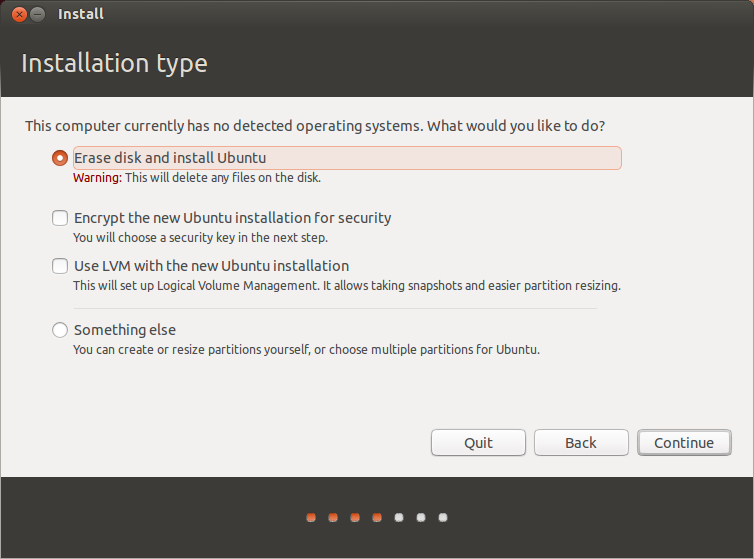
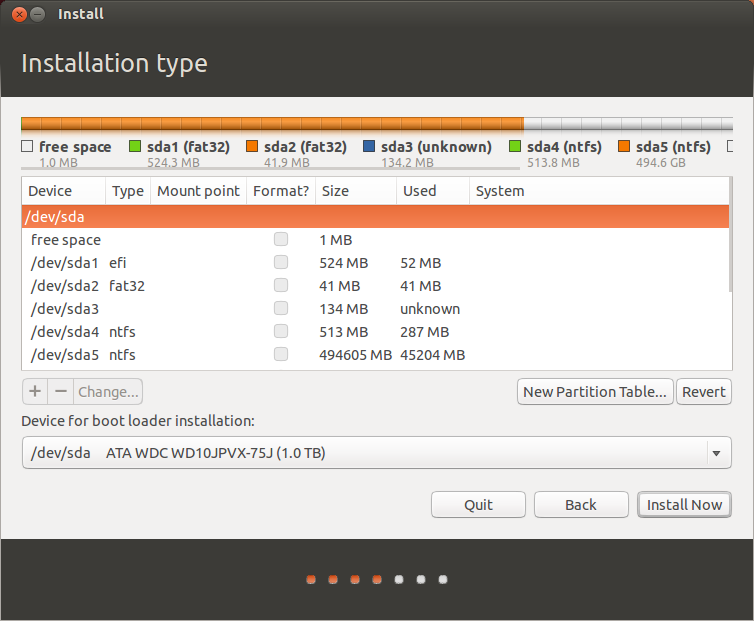
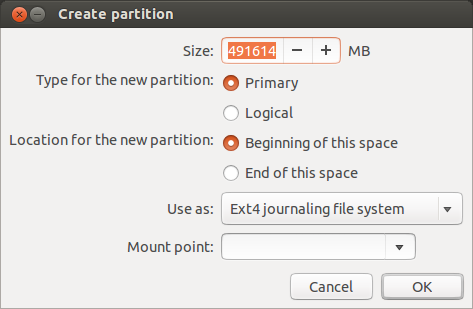
Re-formatted the partitions that I had installed Ubuntu on. After I was done, I re-created the partitions. This time I allocated 200GB as free space (for use with Ubuntu). I then inserted the LiveCD and rebooted my computer. Once the Ubuntu LiveCD booted, I chose "Install Ubuntu". As usual, Ubuntu failed to recognize my Windows 8 installation. I chose the bottom option: Something Else. I then set up 2 partitions. I made a 2GB swap partition (set up as Logical, beginning of area, set to Swap Area), I then allocated the rest of the free space to the Ubuntu install (Primary, ext4 journalling, beginning of area, Mount point set to root (/)). I then selected the primary 198GB partition I had allocated, and selected Install. I installed Ubuntu and then rebooted. Low and behold, it boot directly into Windows 8 (damn you Microsoft!). I then re-inserted the LiveCD, and rebooted. Once rebooted, I chose 'Try Ubuntu Without Installing'. Once Ubuntu launched, I opened up the Terminal. Once in the Terminal, I entered the following commands:
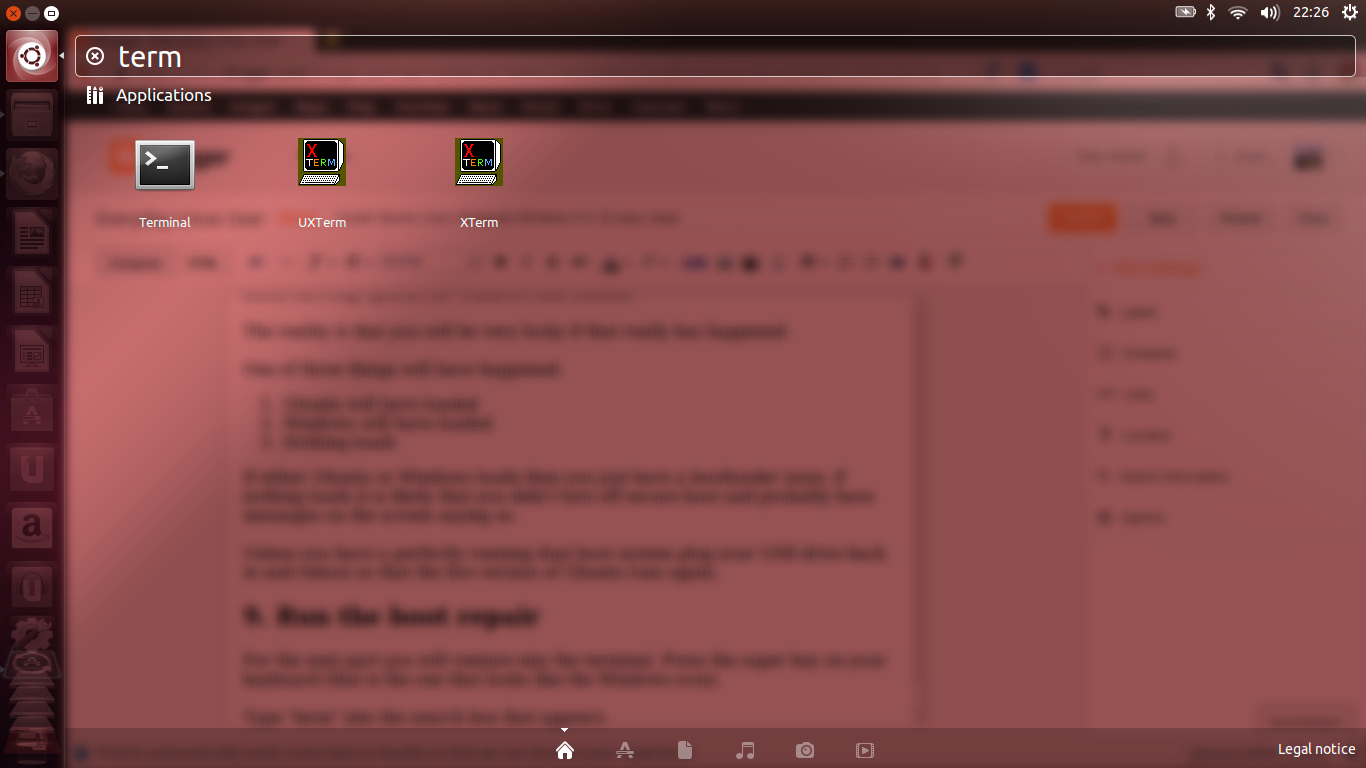
sudo apt-add-repository yannubuntu/boot-repair (make sure you connect to the internet first)
sudo apt-get update
sudo apt-get install -y boot-repair
boot-repair
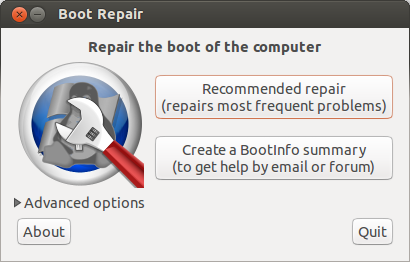
Once Boot Repair opens, select Recommended Repair, and let it do it's thing. You should receive two pop-ups. The first one will say something about EFI being detected, just hit OK. Then it will go through some steps, and it will pop up again, saying 'Buggy Kernel detected.' and say something about backing up and replacing the Windows EFI files. SELECT YES. It will then re-install and update GRUB. Once it is done, type this into Terminal: 'sudo reboot'. Your computer will reboot.
Now, when GRUB comes up, you will see no option for Windows. By default you will be launched right back into Ubuntu... Don't fret.. When Ubuntu reboots, re-open the terminal, and run the Boot Repair commands a second time to permanently install it inside of Ubuntu:
sudo apt-add-repository yannubuntu/boot-repair (make sure you connect to the internet first)
sudo apt-get update
sudo apt-get install -y boot-repair
boot-repair
Now, when Boot Repair opens, click on Advanced Settings. Next click on GRUB LOCATION, and you will see "OS to boot by default" and it will be set to "Current OS, Ubuntu 13.04". Change that to Windows and hit APPLY. Now, when the thing pops up about a Buggy Kernel, select NO. When it completes, type this into the Terminal "sudo reboot". You will be rebooted back into Windows.
I am not sure if I will have to do this every time I want to get back into Windows, but even if I do, it only takes about a minute to do, so that is fine with me. Now, if you want to get back into Ubuntu (at least this is how it works on my Laptop) when you are in Windows, REBOOT your computer, and when the OEM splash screen pops up, press whatever button you must press to open the BOOT MENU. On my computer, it is F12. You should see three entries: Windows Boot Manager(XXXXX)(XXX will be the name of your hard drive), and two other entries (one may say Ubuntu, one may say Windows, or they may both just be the name of your hard drive, e.g. HITACHI345XX434UI), number 1 is Windows Boot Manager, number 2 is Windows, number 3 is Ubuntu. Select number 3 to get into Ubuntu, or number 1 or 2 to boot into Windows.
-----------------------------------------
I only had to do the Boot Repair for the first time. Once I ran it to get back into Windows once, I can now boot into Ubuntu or Windows by opening the Boot Menu during boot and selecting Windows Boot Manager to open Windows, or choosing either of the other two options to open GRUB which gives me the option to launch Ubuntu, or I can even choose Windows UEFI Manager from the GRUB menu, which will boot me into Windows from GRUB. 100% fixed.
Mario Saltalamacchia
|
|


 窥视卡
窥视卡 雷达卡
雷达卡 发表于 2014-3-29 11:40:55
 提升卡
提升卡 置顶卡
置顶卡 沉默卡
沉默卡 喧嚣卡
喧嚣卡 变色卡
变色卡 抢沙发
抢沙发 千斤顶
千斤顶 显身卡
显身卡