设为首页收藏本站

 找回密码
 注册

QQ登录

只需一步,快速开始

查看: 534|回复: 3

PartitionGuru: Verify and Repair Bad Sectors

[复制链接]
发表于 2014-4-25 12:08:28 | 显示全部楼层 |阅读模式
Sectors are the smallest units on the hard disk in which the data is stored. A bad sector on the hard drive is created when that particular sector goes defunct. Bad sectors may be created because of using the hard disk for a considerable amount of time. Other reason for bad sectors on hard drive is physical damage. There are many types of errors that may come up on the screen due to hard drive problems. If there are errors on the computer monitor, but there is no clicking or scraping noise from the hard disk, it may be a problem that can be resolved by using a software application. But if there is a certain noise coming from the hard drive, it may be a serious hardware issue which only needs to be repaired by a professional PC repair shop. If your hard drive is in warranty, you can get it repaired at no charge at all. If these sectors go bad, the data stored thereon is lost and cannot be accessible. However, data on other sectors of the disk will remain as it is.
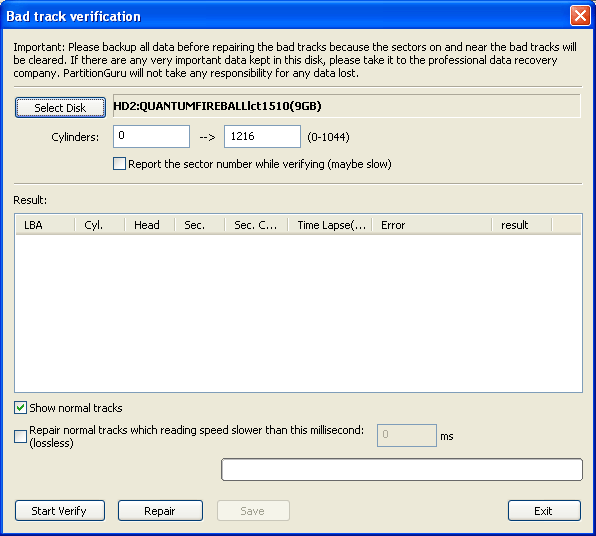
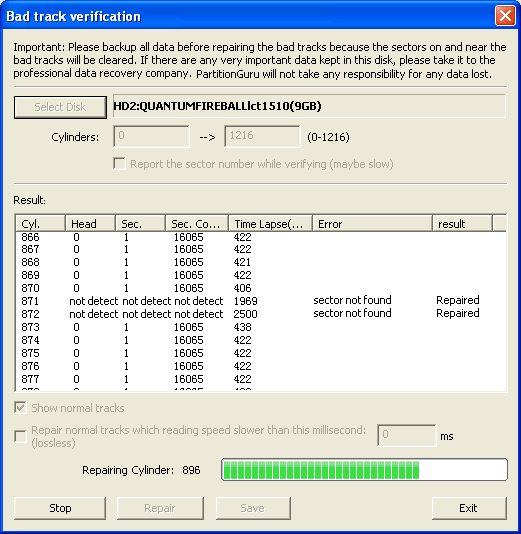
You can use PartitionGuru software for verifying bad sectors. If it is not a hardware issue, you can try to repair it by PartitionGuru. Click the menu "Disk" -> "Verify or Repair Bad Tracks". The following dialogue box will pop up:
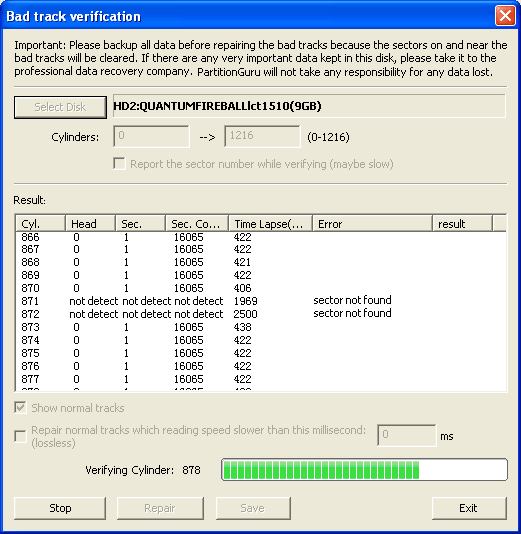
Select a disk to be verified or detected, enter a cylinder range. Then click "Start Verify" button, PartitionGuru will start to scan for bad sectors. If there any bad sectors found, the detail information will be shown in the dialog as the following:
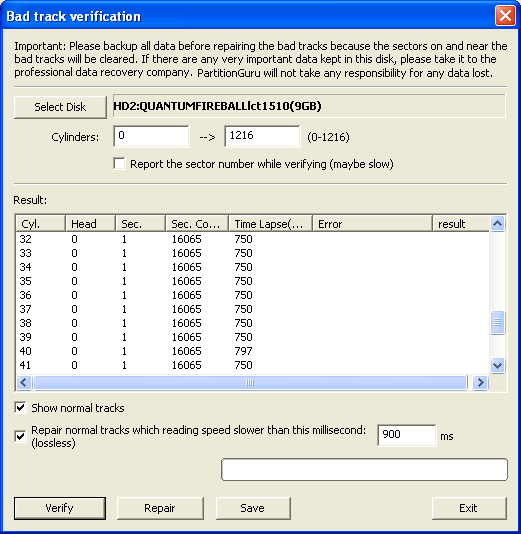
During the verification process, the speed will be obviously slow down when bad sectors were found. The total number of bad tracks will be reported when the verification finished:
You can click the "Save" button to save the detection result to a text file for later reference.
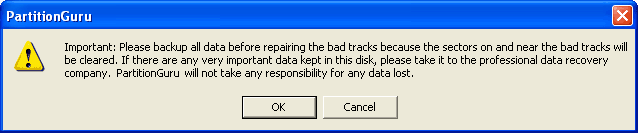
To try to fix the bad sectors just found, please click the "Repair" button. PartitionGuru will show you the following messagebox:
Important Notice: The data stored ON or NEAR the bad sectors will be destroyed while repairing bad sectors. If there are important data stored on the disk and even on the area of bad tracks, DO NOT use this function to repair bad tracks. You should take this disk to the professional data recovery shop to recover your data. Fixing bad sectors NOT means recovering data,on the contrary, it may destroy data! In addition, NOT every bad sectors can be fixed. It just an attempt.
For data safety, it is suggested that DO NOT save important data on the disks with bad sectors. Even the bad sectors were fixed.
For saving time, you can do bad sectors repair directly without verifying. Just click the "Repair" button. The following message box will popup.
If a bad track was successfully repaired,  a "Repaired" mark will be displayed in the result column:
Total number of repaired tracks will be reported when complete.


                                        Download Free Edition
                                        Version 3.7.0                                       

 楼主| 发表于 2014-4-25 12:20:12 | 显示全部楼层
本帖最后由 Test 于 2014-4-25 12:32 编辑

the supplier' site of your HDD. They often offer tools to check your disk (DOS & Windows).

Seagate: http://www.seagate.com/www/en-us/support/downloads/seat...
Western Digital: http://support.wdc.com/download/index.asp?swid=1


For example:

WD AV-GP
             SATA & SAS


http://www.ultimatebootcd.com/
A Bootable CD which contains most manufacturer test and configuration utilities.      

Disk Checker

 楼主| 发表于 2014-4-25 12:53:56 | 显示全部楼层
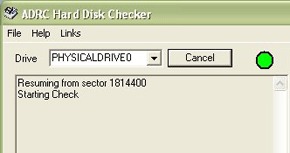
ADRC Hard Disk Checker
                                            
Version 1.01
                      License: Free
                      Requirements: Windows 95/2000/XP
                      Filesize: 45.98K
                          Download Now
                  Features                  
                    ADRC Hard Disk Checker is a free disk utility that checks the health of your hard drive. It scans your hard disk for bad sectors and alerts you if the media does not have optimum usability. With this software, the user can either choose to scan a specific partition or an entire hard drive.
              
                  ADRC Hard Disk Checker can also be used to check the health or bad sectors of other types of data media, such as floppy disks, flash drives, magnetic tape etc.
                  The hard disk checker is easy to use and would be suitable for users of any technical background or level but is also useful even for computer experts. This software complements the ADRC Data Recovery Tools which allow the user to recover files from a hard disk with bad sector.
                  This software is absolutely free! We’d like to offer you the software with no hidden or direct charges. You can download and use a fully functional copy of the program. There will be no spyware of adware installed by using the software. It will not give any pop-up ads or any form of subscription to mailing lists.
                  This program is designed to be compact “green-ware”, with no installation needed. In fact, the program is less than 96 kb and you could even store it in a floppy and run it independently.
                  If you are happy with the utility, share the information with others about ADRC Hard Disk Checker or place to link to our download home page.

 楼主| 发表于 2014-4-25 13:00:12 | 显示全部楼层

Disk Error Checking in Windows 8

In Windows 8, Microsoft has redesigned chkdsk utility - the tool for detecting and fixing disk corruption. In Windows 8, Microsoft introduced a file system called ReFS, which does not require an offline chkdsk to repair corruptions – as it follows a different model for resiliency and hence does not need to run the traditional chkdsk utility.

The disk is periodically checked for file system errors, bad sectors, lost clusters, etc, during Automatic Maintenanceand you now no longer need to really go and run it. In fact, Windows 8 now even exposes the state of the file-system and disk via the Action Center or under the Drive properties in File Explorer. If potential errors are found, you will be informed about it. You can continue to use the computer, while the scan is carried out in the background. If errors are found, you may be prompted via a notification to restart your computer.

If you wish to nevertheless manually run a scan, you can do so. Earlier you had to schedule Disk Error Checking for the system drive and for drives which had files or processes or folders opened. In Windows 8, error checking  starts right away, even on the system drive – and it longer needs to be scheduled at start-up. Only if some errors are found, will you have to restart to let Windows 8 fix the errors.

To begin the scan, right-click on the Drive which you wish to check and select Properties. Next, click on Tools tab and under Error checking, click on the Check button.  This option will check the drive for file system errors.


If the system detects that there are errors, you will be asked to check the disk. If no errors are found, you will see a message – You don’t need to scan this drive. You can, nevertheless, choose to check the drive. Click on Scan drive to do so.

The scanning starts. I found that the process ran quite fast and the scanning was over in less than 5 minutes.

On completion, Windows 8 will display a message. If no errors are found it will say so.

If errors are found, you will see the following message:
Restart your computer to repair file system. You can restart right away or schedule the error fixing on next restart.
When I clicked on Show Details, the Event Viewer sprang to life, showing me the relevant log.

In Windows 8, Microsoft has made the Disk Error detection and correction of file system errors less intrusive, so that users can carry on working at their computers without worrying about such error.

您需要登录后才可以回帖 登录 | 注册

本版积分规则

手机版|小黑屋|BC Morning Website ( Best Deal Inc. 001 )  

GMT-8, 2026-2-5 14:42 , Processed in 0.014478 second(s), 15 queries .

Powered by Discuz! X3.5

© 2001-2026 Discuz! Team.

快速回复 返回顶部 返回列表