|
|
本帖最后由 demo 于 2026-7-3 13:41 编辑
March 4, 2021 By the gnu linux evangelist.
Setting Up
2. Installing Network Printer
How to Install Network Printer on GNU/Linux desktops
Here Installing Wi-Fi CUPS Printer in Linux
3. Installing Samba Server
Now to Setup Samba Server on Zorin OS
Simply play:
- sudo apt install samba samba-common-bin
Next to Start the Samba Server Service run:
- sudo systemctl start smbd nmbd
Possibly to Start it at Boot:
- sudo systemctl enable smbd nmbd
Last, to check it’s running:
4. Configuring Samba
Then to Configure Samba Server
So first edit the main configuration file with nano Editor:
- sudo nano /etc/samba/smb.conf
Enable the following two entries:
- browseable = yes
- guest ok = yes
Use Ctrl+w to Search for “browseable” on nano.
Eventually for large Printing best to enable the spoolssd service, adding to the “[global]” Section:
- rpc_server:spoolss = external
- rpc_daemon:spoolssd = fork
Last use Ctrl+x to Save & Exit from nano Editor!
Finally, Restart Samba with:
- sudo systemctl restart smbd nmbd
5. Adding Samba Printer
Follow to Add Samba-shared Printer in Windows Client
First, Open file explorer and enter the IP address of the Zorin OS computer in the address bar like:
\\192.168.0.110
In case to find your Zorin OS machine IP Network Address issue in Terminal:
And then the printer should be discovered and listed, here below the Windows 10 Setup example:
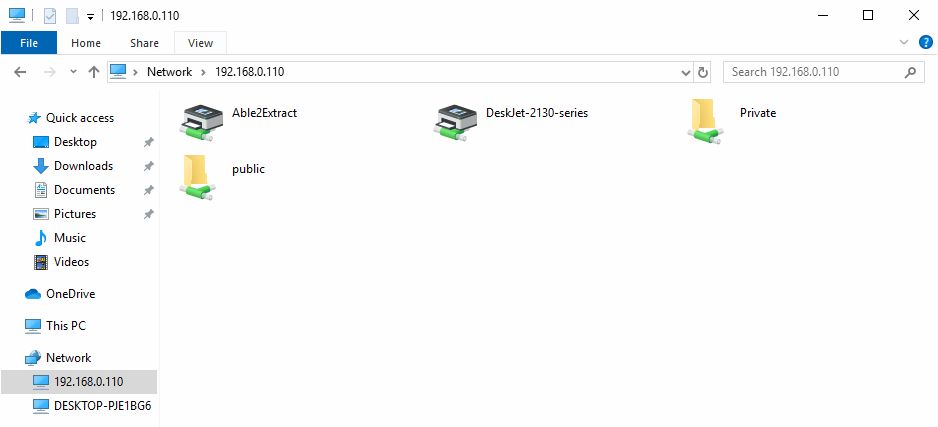
Samba shared printer
Now Double-click the Printer to Add it to your Windows system.
And the again select the OK button to choose a Driver to install:
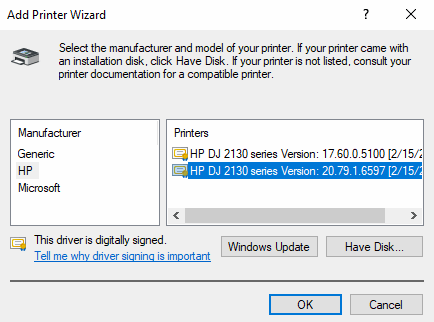
Installing driver
Congratulations, finally the Printer should be successfully added to your Windows system!来自圈子: 动手动脚 |
|


 窥视卡
窥视卡 雷达卡
雷达卡 发表于 2026-7-2 21:39:24
 提升卡
提升卡 置顶卡
置顶卡 沉默卡
沉默卡 喧嚣卡
喧嚣卡 变色卡
变色卡 抢沙发
抢沙发 千斤顶
千斤顶 显身卡
显身卡